Fidelity
Theory
Chapter 1About Us
Modbap. Built different. On purpose.
Modbap is an independent music technology company founded by Corry Banks. We design creative instruments and sound-shaping tools for musicians, producers, beatmakers, sound designers, and people who simply love working with sound. Our approach combines opinionated sound, intuitive control, and performance-forward design to create tools that feel immediate, musical, and inspiring to use.
Modbap began in the world of modular synthesis, developing Eurorack hardware shaped by the intersection of electronic music technology, beatmaking culture, and hands-on performance. That foundation still runs through everything we make. Today Modbap extends beyond the rack into software, developing plugins and creative audio tools that bring the same philosophy to the desktop. Purposeful controls. Distinctive sound. Musical interaction without unnecessary complexity.
1.1 The oneTHNG™ series
oneTHNG™ is Modbap's one-focus character series: creative audio tools built around a single musical idea, designed to do one thing and do it well. Where a channel strip asks you to balance a dozen decisions at once, a oneTHNG plugin takes one musical decision and gives it the whole front panel.
Every plugin in the series shares the same platform, including the preset browser, settings panel, and a license that travels with you rather than being locked to a machine. Chapter 2 and chapters 6 through 8 describe that shared platform and remain consistent across the oneTHNG series. Chapters 3 through 5 focus specifically on Fidelity Theory.
oneTHNG™. One theory. One knob. One thing.
1.2 Why "Theory"?
Every oneTHNG™ begins with a question. The Theory in each title represents an idea we want to examine, test, and ultimately make playable. Rather than beginning with a conventional effect category, each Theory starts with a proposition about sound: what happens when one familiar part of the listening or production process is pushed, reduced, degraded, exaggerated, or reimagined?
The plugin becomes the experiment.
Fidelity Theory asks a simple question: what happens when fidelity itself becomes a creative variable? Its thesis is that fidelity is not simply a measure of better or worse. Sample rate, bit depth, bandwidth, conversion, and the artifacts associated with them can become part of the character of a sound. Fidelity Theory turns that continuum into a single musical control and lets you explore it by ear.
Chapter 2Getting Started
To hear Fidelity Theory, activate the plugin first.
The plugin installs, opens in your DAW and shows its full interface whether or not it has been activated. It does not pass audio until a trial or a license is active. That is deliberate, not a fault.
2.1 Start the free 14-day trial
- Open Fidelity Theory in your DAW.
- Open Settings, then License.
- Click START 14-DAY TRIAL.
The plugin becomes active immediately. There is no account to create and no key to enter. You need an internet connection for that one click and never again afterwards.
2.2 Or activate your license
- Download your .modbaplicense file from My Products at hub.modbap.com.
- Open Settings, then License.
- Drop the file in, or browse to it.
One file covers every Modbap plugin, every DAW and every plugin format on that computer.
2.3 If you hear nothing
Read the message at the top of the plugin before you check anything else. Fidelity Theory does not process audio until a trial or a license is active, so a silent plugin is far more likely to be an unactivated one than a routing problem.
2.4 Then start playing
Load a preset from the Factory bank, or leave the plugin where it opened and turn the FIDELITY knob. That is the instrument. Everything else in this manual is about where to take it.
Trials, licenses, moving between computers and what happens when a trial ends are covered in full in chapter 8, License & Support.
Chapter 3Overview
Fidelity Theory is a character effect that turns digital fidelity into a creative control.
It explores the sound of changing sample rate, bit depth, and converter character together, allowing you to move through a designed continuum of digital fidelity rather than balancing technical parameters independently.
Sample rate and bit depth travel together along one diagonal, in opposite directions. Turning the knob to the right lowers the sample rate and raises the bit depth. Turning it to the left raises the sample rate and lowers the bit depth. Every position on the knob represents a specific coordinate of the two, and the readout beneath the knob shows the coordinate currently being used.
On top of that core relationship, COIL provides converter character in two voicings, while RING introduces optional aliasing behavior that folds high-frequency content back into the audible range. Level is matched across the sweep so moving the knob changes character rather than simply making the track louder or quieter.
3.1 What you get
- oneTHNG™: Fidelity Theory installer for macOS or Windows.
- All plugin formats your system supports, placed in their standard locations.
- The Factory preset library, built into the plugin: five categories of presets.
Optional extras, not included in the download: the manual, available as a free download; Drops preset packs, available from Modbap; and a free Modbap account at hub.modbap.com, needed to register a license and to raise a service ticket, but not needed to download or to run a trial.
3.2 Specification and core features
- One FIDELITY control, sweeping sample rate and bit depth together along a single diagonal.
- Sample rate range 48k down to 6k.
- Bit depth range 6-bit up to 16-bit.
- Default coordinate 32k · 12-bit.
- Live coordinate readout beneath the knob, updating whether or not audio is playing.
- COIL converter character with two gain-normalized voicings, IRON and WORN.
- RING aliasing stage, with a fold point that tracks the sample rate currently being produced.
- Level matched across the full sweep, bounded to a few dB of correction.
- Dither, never louder than -60 dBFS.
- Smoothed parameter changes and crossfaded switching: safe to move anything mid-take.
- Host bypass with a ramped transition, automatable from the DAW.
- Five Factory preset categories, plus Locker, Favs and Drops.
- UI size from 75 to 200 percent, with optional drag to resize.
- 14 day trial and a 21 day evaluation window. Portable license file, no activation limit.
3.3 Installation
Downloads do not require a Modbap account, and the installer is the same file whether you are trialing the plugin or you have bought it. There is no separate trial build and no separate paid build: what the plugin does depends on whether it finds a license.
- Download the installer using the link in your purchase email, or from the product page at modbap.com. Both point at the same file. If you already own the product, the download is also linked from My Products in the Hub.
- Run the installer and follow the prompts. It places the plugin formats your system supports in their standard locations.
- Open your DAW. Some hosts scan for new plugins automatically at startup, others need a rescan triggered from their preferences. If the plugin does not appear, a rescan is the first thing to try.
- Insert Fidelity Theory on a track and open it. A fresh install passes no audio until you start the trial or place a license: silent by design, not a fault.
- Click START 14-DAY TRIAL on the License page, or drop your license file in. See chapter 8.
3.4 The interface
Everything Fidelity Theory does is on one panel. There are no pages to dig through and no hidden second layer of controls.
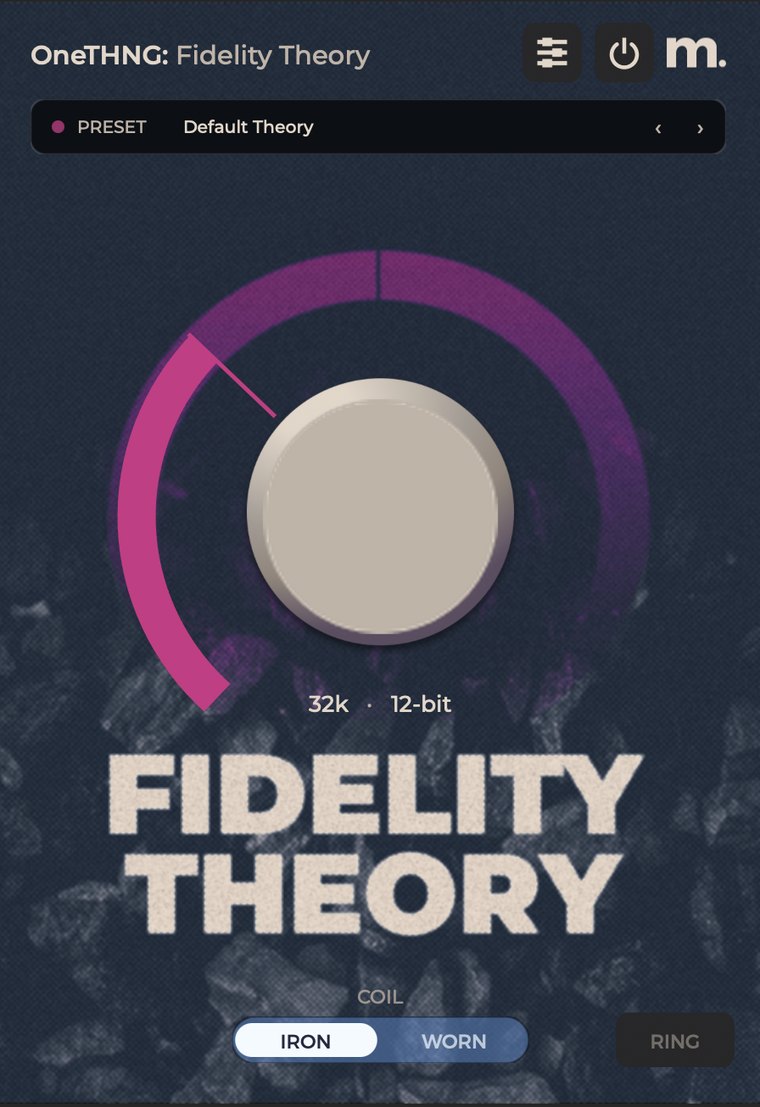
| Element | What it does |
|---|---|
| Settings | Opens the settings panel: UI size, tooltips, drag to resize, About, Credits and License. See chapter 7. |
| Power | Bypasses the plugin. Lit means bypassed, not on. See section 7.2. |
| Preset display | Shows the loaded preset and opens the preset browser. See chapter 6. |
| Preset arrows | Move back and forward through every preset the plugin has loaded, in list order, wrapping at the ends. |
| FIDELITY | The one knob. Sample rate and bit depth, travelling together in opposite directions. |
| Arc and marker | The arc fills as you turn and the marker line is the exact value. |
| Coordinate readout | The sample rate and bit depth the plugin is imposing, for example 32k · 12-bit. It hides while the plugin is bypassed. |
| COIL | The converter character. IRON or WORN, always one or the other. |
| RING | The aliasing stage. Off is a musical starting point; on is a decision. |
3.5 Signal flow
Converter color first, then bit depth reduction, then sample rate reduction, then RING. That order is why COIL changes what gets degraded rather than sitting on top of it, and why RING is the last thing you hear.
FIDELITY drives both reduction stages from one position. COIL sits ahead of them, so its drive and its color are what the quantizer and the decimator are working on. RING takes its fold point from the sample rate FIDELITY is currently producing, which is why it speaks at any knob position rather than only at the extremes. Level matching is applied last, before the output.
Chapter 4The Controls
Everything Fidelity Theory does is on one panel. One knob, one switch, one button.
FIDELITY is the main control, and the reason the plugin exists: a single knob carrying two axes of digital character. COIL and RING then decide what that surviving signal sounds like. COIL is the converter voicing, always in circuit. RING is an optional aliasing stage at the end of the chain.
Turning the knob to the right lowers the sample rate, down to 6k, and raises the bit depth, up to 16-bit. Turning it to the left raises the sample rate, up to 48k, and lowers the bit depth, down to 6-bit. Both axes change at every position, so there is no neutral point anywhere in the travel. Turning the knob down does not move you toward the dry signal; it trades bandwidth for grit.
Knob moves are smoothed and the switches crossfade, so everything on this panel is safe to move while audio is playing. It is built to be performed, not only dialled in and left.
4.1 General fidelity features
Fidelity sets where in the history of digital sampling the track is sitting. Rather than asking you to set a sample rate and then find a bit depth that suits it, the two are tied to one another along a diagonal, and you choose a point on that diagonal by ear.
| Function | Range | Description |
|---|---|---|
| FIDELITY | 48k · 6-bit to 6k · 16-bit | The single fidelity coordinate. Turning clockwise lowers the sample rate and raises the bit depth. Turning counter-clockwise raises the sample rate and lowers the bit depth. Default 32k · 12-bit. |
| Readout | Live | Names the coordinate currently being imposed. Updates as you turn, with or without audio playing. Hidden while the plugin is bypassed. |
| Arc | Fill and marker | The arc fills as you turn and the marker line shows the exact value. There are no era or year labels on the arc. |
4.2 Both ends of the sweep
Neither end of the knob is a clean setting. They are two kinds of damage, in opposite directions, with the most broadly usable point sitting between them.
| Position | Coordinate | Character |
|---|---|---|
| Hard left | 48k · 6-bit | The widest bandwidth the plugin offers, quantized as coarsely as it goes. Nothing is taken off the top, but the steps are huge. Bright, harsh and full of grit. |
| Default | 32k · 12-bit | The classic sampler weight most people are reaching for. The default coordinate, and the place to work outward from. |
| Hard right | 6k · 16-bit | Quantization fine enough to hear nothing of, on a signal band-limited down to almost nothing. Dark, narrow and grainy in the opposite way. |
If you are hunting for the untouched signal, it is not at either end of the travel. The power button in the top bar is the only route to it. See section 7.2.
4.3 The coordinate readout
The readout below the knob shows the live coordinate, for example 32k · 12-bit. It is the coordinate the plugin is imposing on the signal, the sample rate and bit depth it is degrading to, and it is unrelated to the sample rate your session runs at. A 96k session and a 44.1k session both show the same number for the same knob position.
The readout hides while the plugin is bypassed at the power button, because there is no coordinate being imposed.
4.4 Level matching
Output level is matched to input across the sweep. Turning FIDELITY changes the character but barely changes the level, which is deliberate: you judge the sound rather than a volume change, and a louder setting does not fool you into thinking it is a better one.
The correction is bounded to a few dB either way, so an extreme setting can still land slightly off. Trim afterward if you need to.
4.5 COIL
COIL is the converter character, and it is always in circuit. There is no off position and no flat setting, because the converter color is part of the plugin's voice. Both voicings are gain-normalized, so switching between them changes the color rather than the level, and the switch crossfades rather than jumping: it is safe to change mid-take.
| Function | Range | Description |
|---|---|---|
| COIL | IRON or WORN | Selects the converter voicing. Default IRON. Always running: there is no bypass on this control. |
| IRON | Voicing | An older machine, well kept. A presence lift around 4 kHz and gentle drive. The drive scales with knob position: lightest at the far left of FIDELITY and roughly twice as hard at the far right. |
| WORN | Voicing | A tired old machine. Fatter low mids around 200 Hz, high frequencies softened from around 8.5 kHz up, asymmetric saturation and a whisper of converter grain. The grain is scaled by the signal envelope, so silent input stays silent. |
4.6 RING
RING is the aliasing button. It drives the signal a little to create high harmonics, then decimates it with no anti-alias filter, so everything above the fold line folds back into the signal as inharmonic, metallic digital grit. This is the sound early sampler hardware made when its output filtering was defeated.
It is blended in rather than replacing the signal, which is why the track still sounds like itself underneath. It sits at the end of the chain and crossfades on and off.
| Function | Range | Description |
|---|---|---|
| RING | On or Off | Adds the aliasing stage. Default off. Its fold point tracks the sample rate FIDELITY is currently producing, a little over half of it, with a floor so it stays musical, so it speaks at any knob position and not only at the extremes. |
What RING adds is inharmonic by design and does not follow the key of the material. That is the point of it, and it is why it is a switch rather than an amount. Off is a musical starting point; on is a decision.
4.7 The order of the chain
COIL first, then bit depth reduction, then sample rate reduction, then RING, then level matching. Two consequences are worth holding on to. COIL changes what gets degraded, so the voicing you pick is baked into the grit rather than sitting on top of it. And RING is the last thing in the chain, so it folds whatever the rest of the plugin has already made.
Chapter 5Sound Design
Fidelity Theory is a character device. It is not a general-purpose bitcrusher, not a sample rate reducer with a cutoff knob, and not a tape or vinyl character plugin.
If you need to remove a specific frequency problem, an EQ is the right tool. Fidelity Theory is for what the whole thing sounds like it was recorded into. It sits well on drums, loops, samples, keys and vocals, anywhere you want the weight and grain of a hardware sampler. It works on a full mix or a drum bus too, in small amounts.
5.1 Starting points
| Sound | Settings | Notes |
|---|---|---|
| Classic knock on drums | FIDELITY default · COIL IRON · RING off | The 32k · 12-bit coordinate is the default for a reason. Start here before you start travelling. |
| A darker, tired machine | FIDELITY default · COIL WORN · RING off | Same knob position. Fatter low mids, softer highs, a little grain underneath. |
| Bright and crunchy | FIDELITY hard left · COIL IRON · RING off | 48k · 6-bit. Nothing is taken off the top, but the quantization is as coarse as the plugin gets. |
| Break it | FIDELITY hard right · COIL WORN · RING on | 6k · 16-bit, folded. Narrow and unmistakable, then pull the knob back until it sits with the track. |
| Small amounts on a full mix | FIDELITY a step either way · COIL IRON · RING off | Move a little at a time and watch the readout. On a finished mix, one small step is enough. |
5.2 Working with the sweep
Two habits get the most out of the plugin. The first is to work outward from the default rather than inward from the ends: both ends are extremes, in opposite directions, and the middle is the most broadly usable part of the travel. The second is to sweep it while the track plays. Parameter changes are smoothed and the switches crossfade, so FIDELITY is safe to automate and safe to perform. A slow move across a bar is a different musical idea from a static setting, and the plugin was built to allow it.
Use the power button, not the knob, for your A/B. Neither end of the sweep is clean, so comparing hard left against hard right tells you nothing about how much of the plugin you are using.
5.3 If it is not doing what you expect
I turned FIDELITY all the way down and it still sounds crushed.
Neither end of the knob is a clean setting. Hard left is 48 kHz at 6-bit: nothing is taken off the top, but the quantization is the coarsest the plugin does. Hard right is 6 kHz at 16-bit: the quantization is fine enough to disappear, but almost no bandwidth survives. Turning the knob down trades bandwidth for grit rather than moving toward the dry signal. The untouched signal comes from the power button in the top bar.
I cannot get a completely clean sound out of it.
COIL is always running. There is no off position and no flat setting on it, because the converter color is part of the plugin's voice. Together with the knob having no clean end, that means the power button is the only route to the untouched signal.
Turning FIDELITY changes the character but barely changes the level.
That is deliberate. Output level is matched to input across the sweep, so you judge the character rather than a level change. The correction is bounded to a few dB either way, so an extreme setting can still land slightly off. Trim afterward if you need to.
RING does not seem to do anything.
Check it is switched on, and check the power button is not lit. If it is on and still barely audible, look at the source: RING works by folding high frequencies back into the signal, so material with little going on up top gives it less to fold. It is also blended in rather than replacing the signal, so it colors the track rather than taking it over.
It sounds metallic and out of tune with the track.
That is RING. What it adds is inharmonic by design and does not follow the key of the material. Switch it off and it is gone completely.
There is a quiet noise floor under the signal.
Two possible sources, both intentional and both quiet. WORN adds a whisper of converter grain that is scaled by the signal envelope, so switch COIL to IRON to rule it out. Below that there is dither, which is never louder than -60 dBFS. If the noise is still there with COIL on IRON, it is coming from somewhere else in the chain.
The readout does not match my session sample rate.
It is not meant to. The readout is the coordinate the plugin is imposing, the sample rate and bit depth it is degrading to, independent of the rate your DAW runs at. It also hides while the plugin is bypassed, because there is no coordinate being imposed.
It is more extreme than I want at every setting.
Turn RING off, then work outward from the default 32k · 12-bit coordinate rather than inward from the ends. Both ends are extremes, in opposite directions, and the default is the most broadly usable point on the knob.
Chapter 6Presets
The preset browser is the same in every Modbap plugin. It drills down: pick a bank, pick what is inside it, pick a preset.
A label along the top shows where you are, and the back arrow beside it steps up one level. It opens at wherever the current preset lives. This chapter describes the platform, not Fidelity Theory specifically. It reads the same in every Modbap plugin manual, so a habit you build in one carries into all of them.
6.1 The preset browser
Open the browser by clicking the preset name at the top of the plugin.
| Element | What it does |
|---|---|
| Back arrow | Steps up one level. The label shows the bank or category you are currently inside. |
| Rows | At the top level, the Factory categories. Click a row to open it. |
| Count and chevron | How many presets the row holds, and that there is another level inside it. |
| LOAD | Brings in a preset file from disk. Licensed users only. |
| EDIT | Renames, re-describes or deletes the currently loaded Locker preset. |
| SAVE | Writes the current settings to your Locker. Licensed users only. |
| INIT | Sets every control back to its default value. |
6.2 The banks
| Bank | Contents |
|---|---|
| Factory | The presets built into the plugin, grouped into categories. Read-only. |
| Drops | Modbap preset packs you have installed. |
| Locker | Your own material. User holds the presets you saved; Favs gathers everything you have starred, from any bank. |
Drops is empty until you install a pack. See section 6.6.
6.3 The Factory categories
The Factory bank is grouped into categories, named for the kind of move each one makes: CANON, TOUCH, PRISM, PUSH and SCORCH. The count at the right of each row is how many presets that category holds.
Factory presets are read-only. To make your own version of one, load it, change what you want, and save it to Locker under a new name.
Until the plugin is licensed each category offers its first preset only, and the count at the right of the row reads 1 rather than the full count. See section 8.4.
6.4 Loading, stepping and starring
Click a preset to load it. It loads immediately and the name at the top changes. The pair of arrows to the right of that name steps back and forward through every preset the plugin has loaded, in list order, wrapping at the ends, not just the category you are browsing.
The star at the right of a preset row adds it to Locker > Favs. It works on Factory and Drops presets as well as your own, and never modifies or moves the original. Stars are hidden inside Favs, where everything is starred already.
6.5 Saving your own presets
- Dial in the sound you want to keep.
- Open the preset browser and click SAVE in the row of buttons along the bottom.
- Give the preset a name and, if you want, a one-line description of what it is for.
- If that name is already used you are asked to confirm the overwrite. The preset is written to Locker and is available in the browser straight away.
Saving captures the value of every control at that moment, including whether the plugin is bypassed. It does not capture anything outside the plugin: no audio, no automation, no host settings.
With one of your Locker presets loaded, click EDIT to change its name or description, or to delete it. Deleting asks for confirmation first, and only ever affects your own saved preset. EDIT works only while a Locker preset is the current one.
A saved project stores the plugin's settings itself, so a project opens with exactly the sound you left it with whether or not the preset still exists. Deleting a preset from Locker does not change any project that used it.
6.6 Drops
Drops are Modbap preset packs: extra presets you install into a plugin, on top of the Factory presets built into it. A Drop is a themed pack, more of the plugin's own character, or a specific job it does well.
- A pack is a folder holding a
pack.jsonfile and one subfolder of presets per plugin it covers. - Put that folder inside the Drops folder in the shared Modbap folder.
- Close the plugin window and open it again. Each plugin scans for packs when its window opens.
- The pack appears as a row inside its bank, with its presets underneath.
A pack that carries no subfolder for the plugin you are running is ignored by that plugin, quietly and harmlessly. A pack folder with no pack.json, or one missing its name, is skipped the same way. To remove a pack, delete its folder: nothing else in the plugin is affected, and any presets you saved to Locker are your own files and stay where they are.
Like Factory presets, presets from a pack cannot be renamed, edited or deleted from the browser.
6.7 Where presets live on disk
You do not need this for normal use, but it is the answer for backups, for moving to a new computer, and for installing a preset pack by hand. Presets live under the shared Modbap folder, in a subfolder named for the plugin's product line. Every plugin in that line shares it.
| Platform | Location |
|---|---|
| macOS | ~/Library/Application Support/Modbap/<line>/ |
| Windows | %APPDATA%\Modbap\<line>\ |
| Folder | Contents |
|---|---|
| Drops/ | Installed Modbap preset packs, one folder per pack. |
| Locker/ | The presets you saved. |
Each of those holds one subfolder per plugin, and the preset files sit in there: one small file per preset, in a flat folder. A folder only exists once there is something in it, so a plugin you have never saved from has no Locker folder yet. Factory presets are not on disk at all; they are built into the plugin, which is why there is nothing of theirs to back up, move or lose.
To back up, copy Locker/: that is everything of yours, and packs can be reinstalled. Presets are stored on the machine rather than in your Modbap account, so moving to a new computer means copying that folder across yourself. It is shared by every DAW and plugin format on the machine, which is why a preset you save in one host is there in all of them.
6.8 Manage Presets
Settings holds a Manage Presets page with three actions. The arrow beside the title steps back to Settings.
| Element | What it does |
|---|---|
| Close | Returns to the plugin. |
| Export My Presets | Writes your whole Locker to one zip file. The line under it counts what you have saved. |
| Import My Presets | Restores a backup zip into your Locker. |
| Import Drops | Installs a preset pack from a zip or an unzipped folder. |
Export My Presets packs your whole Locker into one zip file, named after the plugin and the date, offered to your Music folder's Modbap folder. Factory presets and installed packs are not included; they are reinstallable. Export always works, licensed or not.
Import My Presets restores a backup zip into your Locker. It never overwrites: a preset already present under the same file name is kept, and the plugin reports exactly what came in and what was already there. A backup made by a different plugin is refused by name.
Import Drops installs a preset pack from the zip you downloaded, or from the unzipped folder. The pack's presets appear in the browser immediately, no reopen needed. Reinstalling an installed pack asks before replacing it, and replacing a pack never touches your Locker.
Pick the wrong kind of file in either import and the plugin recognizes it and offers the right action instead.
Chapter 7System
The settings panel, the power button and the update path are the same in every Modbap plugin.
Settings are stored on your computer rather than inside the plugin, so they survive an update, and they are saved separately per plugin: changing the UI size on one does not change it on another.
7.1 Settings
The cog at the top of the plugin opens settings.
| Function | Range | Description |
|---|---|---|
| UI size | 75–200% | How large the plugin window is drawn. Use it for a high-resolution display where the default is small, or to fit the window on a laptop screen. It changes only the size of the interface, never the sound. |
| Tooltips | On or Off | When on, hovering a control describes what it does. |
| Drag to resize | On or Off | Off by default. Turn it on and the window gains a resize corner you can drag to any size between 75 and 200 percent. The aspect ratio is locked and the whole interface scales as one piece, so nothing reflows and no control moves relative to another. |
| About | Page | Shows the version and where to find help. Have the version to hand when you contact support. |
| Credits | Page | Lists who made the plugin. |
| License | Page | Shows the plugin's license status. It is where you paste or browse for the license file, start a trial if you have not started one, and remove a license from that computer. |
7.2 Bypass, the power button
The power button sits at the top right of the plugin, next to the settings cog, and it bypasses the plugin. Bypassed, the plugin passes audio through untouched. It is the honest A/B: what the track sounds like with the plugin doing its work, and without. The change is ramped rather than instant, so switching it while audio runs does not click.
It is the plugin's real bypass parameter, the one the plugin hands the host as its bypass. In a DAW that drives it, switching from either place keeps both in step, and it can be automated from the host like any other parameter. Bypassing does not reset anything: your settings, your loaded preset and your automation are all exactly as you left them when you switch back.
If a plugin seems to be doing nothing, check the power button before anything else. A lit power button is the most ordinary explanation, and it costs a second to rule out.
7.3 Updates
Updates to a product you own are free. Download the current installer and run it over your existing installation. The product page at modbap.com always links the current release, and the download link in your purchase email points at the same place: it does not go stale. My Products in the Hub links it too.
You do not need a Modbap account to download an update, and your existing license keeps working. Updating does not require re-registering or re-entering your key.
Older releases stay available. If you need one, to finish a project, to match a session on another machine, or because a newer build behaves differently on your system, raise a service ticket in your Hub account and say which version and which platform you need.
Occasionally a release is withdrawn: a bad build, a signing problem, or a serious defect. A withdrawn version cannot be downloaded, and the download page says so plainly rather than simply failing. If you are running one, install the current release.
Chapter 8License & Support
You install the same file whether you are evaluating or you own the plugin. There is no separate demo build to uninstall later. When you buy, the plugin you already have becomes the full version.
Your license is a portable file, not a machine lock. Nothing in it identifies a computer, there is no activation limit and there are no seats to manage.
8.1 Starting a trial
Download and install the plugin, open it in your DAW, and click START 14-DAY TRIAL on the plugin's License page. The first time you open an unlicensed plugin it takes you to that page on its own. There is no account to create, no license key to enter and no signup.
Before you start the trial the plugin loads and its interface works, but its output is silent. That is deliberate, not a fault. One click starts the trial and audio comes up immediately.
You need an internet connection for that one click. It is the only time the plugin itself goes online: it sends the plugin's name and a scrambled, one-way ID for your computer, and gets a signed start date back. Everything after that is checked on your own machine.
Each Modbap plugin has its own separate trial, keyed to that plugin and that computer. Trying one plugin today does not use up the trial on any other.
8.2 The License page
Settings, then License. It shows the plugin's license status, and it is where you paste or browse for your .modbaplicense file, start a trial if you have not started one, and remove a license from that computer.
8.3 How long the trial runs
Evaluation runs 21 days in total, in two stages. The clock is elapsed time from the moment you start, not calendar dates: a trial begun at 3pm ends at 3pm.
| Stage | Days | What happens |
|---|---|---|
| Trial | 1 to 14 | The full processor, every control, full audio quality, no interruptions. Save your DAW projects normally, automate everything, bounce and print freely. The DSP is not limited in any way. |
| Demo | 15 to 21 | Everything still works exactly as before, with one change: roughly every 30 seconds the output goes silent for about a third of a second, fading smoothly out and back in. No beeps, no tones, no noise. You can keep evaluating the sound. You just cannot finish a record with it. |
| Expired | After 21 | The output goes silent until you license the plugin. It still loads, still opens, and still remembers every setting in every project. |
Your work is always safe. Licensing never touches your projects. If you build a sound during your trial, save the project, and do not buy before the window closes, reopening that project later shows the plugin silent but every knob exactly where you left it. License the plugin and your sound comes back instantly, with nothing to rebuild.
Each plugin runs its own independent clock. Setting your system clock back does not buy extra time: the plugin keeps the latest date it has ever seen and never counts backward from it.
8.4 What is locked
The DSP is not limited. You get the full processor, every control and full audio quality. What is reserved for licensed users is the preset library and preset writing.
| Trial and demo | Licensed | |
|---|---|---|
| Full DSP and every control | Yes | Yes |
| Uninterrupted audio | Days 1 to 14 only | Always |
| Factory presets | First preset of each category | The complete library |
| Save your own presets | No | Yes |
| Load and import presets | No | Yes |
| Drops and Locker banks | No | Yes |
| DAW project recall | Yes | Yes |
The preset subset is the same during the trial, during the demo period, and again once evaluation has expired. Nothing is taken away on day 15: the only thing that changes is the periodic silence.
8.5 More than one computer
Nothing in the license file identifies a machine, and the plugin does not check one. Install on your studio machine and your laptop and use the same file on both. There is no count to run down and no deactivation step, so you never have to free a machine up before using another, and one file covers every DAW and every plugin format on that computer.
- Install the plugins on the second machine.
- Open Settings, then License, in any Modbap plugin.
- Drop your
.modbaplicensefile in. You can re-download that file any time from My Products at hub.modbap.com.
The stored license lives under the user account that runs the DAW, so a second user account on the same computer needs the file dropped in as well.
8.6 Removing a license
Selling a machine or wiping a drive? Open a Modbap plugin that your license covers, go to Settings, then License, and click REMOVE LICENSE FROM THIS INSTALL. That deletes the stored license file on that computer and nothing else. Because the file is shared, that removes it for every Modbap plugin on that machine. It does not touch your account, it does not consume anything, and you can activate again any time by dropping the file back in.
8.7 Getting help
Support for Modbap software is handled exclusively through the Hub at hub.modbap.com. Sign in and create a service ticket in your account. A free Modbap account is required: creating one takes a moment, and it is also the account your products register to, so it is worth having regardless.
Modbap does not publish a support email address, and support is not offered by email. A ticket keeps your order, your products and the conversation together in one place, in your account. The more of this you provide up front, the less back and forth a ticket takes.
8.8 Before you raise a ticket
A few situations resolve without one.
| Situation | Answer |
|---|---|
| The plugin still shows a trial after you registered your key | Registering attaches the product to your account; the plugin reads a license file. Download a fresh one from My Products and place it where the Hub tells you. |
| A purchase confirmation that has not arrived | Check spam, check the address used at checkout, and search your mail for "Modbap". Your products and downloads are also listed under My Products in your Hub account. |
| How many machines you can install on | Any number you own or control, provided you are the one using them. There is no activation limit and no seats to free up. |
| What an NFR license allows | Everything a purchased license allows, including commercial use. It may not be sold or traded, and it carries no obligation to promote or review anything. |
8.9 Credits
| Role | Credit |
|---|---|
| Concept + Product Design | Modbap |
| DSP + Software Engineering | Modbap |
| Sound Design + Factory Presets | Modbap |
| UI/UX Design | Papernoise |
| Special thanks | The Modbap community |
© 2026 Beatppl Inc. All rights reserved. oneTHNG™ is a trademark of Beatppl Inc. All other trademarks are the property of their respective owners.
Manual version 1.0 · Software version 1.0.0 · modbap.com · hub.modbap.com
Chapter 9Preset Glossary
Every Factory preset, what it is for, and where its three controls sit.
The five categories walk from the definitive settings out to the ones that misbehave. Settings are given as the coordinate the readout shows, then the COIL voicing, then whether RING is on.
Stepping through a category with the preset arrows is a quick way to audition the plugin against your own material: the presets inside one category move in the same direction.
| Default Theory | Where the plugin starts, and the coordinate most people are reaching for. | 32k · 12-bit / IRON / off |
| Classic Center | A step further in, still even-handed enough for anything. | 25k · 13-bit / IRON / off |
| Modern Memory | Recent-sounding: bandwidth mostly intact, the steps doing the work. | 42k · 10-bit / IRON / off |
| Old School Standard | The narrow, weighty end of respectable. | 20k · 14-bit / IRON / off |
| Low Rate Love | Bandwidth well down, with the quantization clean underneath it. | 12k · 15-bit / IRON / off |
| Just a Little Older | The smallest move that still reads as a decision. | 36k · 11-bit / IRON / off |
| Softened Edges | Top end rolled away without any added grit. | 18k · 14-bit / IRON / off |
| Sampled Once | As if the part had been through a sampler exactly one time. | 29k · 13-bit / IRON / off |
| Dust on the Top | The tired front end adding a whisper of grain over quiet passages. | 22k · 14-bit / WORN / off |
| Gentle Grain | Bandwidth left alone, the character carried by the coarser steps. | 40k · 10-bit / IRON / off |
| Beige Box | A desk machine of the middle era, even and unshowy. | 26k · 13-bit / IRON / off |
| Floppy Glow | Narrow and soft, with the worn converter underneath. | 16k · 15-bit / WORN / off |
| Rack Dust | The default weight, read by a machine that has been on for years. | 30k · 12-bit / WORN / off |
| Crunchy Conversion | Wide open and coarsely stepped: crunch without darkness. | 44k · 9-bit / IRON / off |
| Basement Bounce | Narrow, warm and slightly tired. | 14k · 15-bit / WORN / off |
| Worn Memory | Committed, but unbroken. | 24k · 13-bit / WORN / off |
| Hot Converter | The IRON drive leaning in near the default coordinate. | 34k · 12-bit / IRON / off |
| Grain Gain | Wide bandwidth with the grain pushed forward. | 38k · 11-bit / WORN / off |
| Bounce It Again | Folded and narrow, the way a file sounds after one bounce too many. | 11k · 15-bit / WORN / on |
| Memory Full | Almost nothing left up top, quantization fine enough to disappear. | 8k · 16-bit / WORN / off |
| Broken Archive | A file that did not survive storage. | 10k · 15-bit / WORN / on |
| Cheap Future | Full bandwidth, coarse steps, folding on top: bright and wrong. | 46k · 8-bit / IRON / on |
| Disk Error | Mid-narrow, with the aliasing sitting where the music was. | 18k · 14-bit / WORN / on |
| Wrong Decade | Close to usable until RING drags it somewhere else. | 28k · 13-bit / WORN / on |
| Aliased Universe | The far end of the knob with everything on. Pull it back until it sits with the track. | 6k · 16-bit / WORN / on |